
-
Firmware Downloads & Controller Updates
🚀 Overview – Three Methods to Download Firmware
There are three available methods for downloading and installing firmware for your WLED controller.
🌐 Method 1 – Download the General WLED Firmware
(Via the two official Web Installer websites)
You can download and install the general WLED firmware using either of the following links:
🔗 https://install.wled.me/
🔗 https://wled-install.github.io/📥 What You Can Do With These Installers
-
Download the latest stable WLED firmware
-
Flash firmware directly in your browser (Chrome / Edge required)
-
No additional software needed
-
Automatically detects ESP8266 / ESP32 / ESP32-S3
-
Configure Wi-Fi & LED settings after install
🧭 How to Use These Installers
-
🔌 Connect your WLED controller to your computer via USB
-
🌐 Open one of the Web Installer links
-
▶ Click “Install”
-
🖥 Select your device from the port list
-
⏳ Wait for the flashing process
-
📶 Configure Wi-Fi and LED settings
⚠️ Notes
-
These are universal WLED firmware builds—not model-specific.
-
For light systems requiring special timing or RGBW / RGBWY mapping, see
👉 Method 3 – Model-Specific Firmware.
🛠️ Method 2 – Flash the .BIN Firmware
(Using ESP_Flash_Download_Tool or ESP-Flasher)
This method lets you manually flash a
.binfirmware file using professional flashing tools.Perfect for:
-
🧩 Model-specific firmware
-
🧪 Beta or custom builds
-
🔧 Advanced users needing full control
We recommend two applications:
-
ESP_Flash_Download_Tool (official Espressif)
-
ESP-Flasher (simple & cross-platform)
Both are included in the attachments.
📦 How to Flash Firmware Using These Tools
🔽 Step 1 — Download the .BIN Firmware File
You may download:
-
The universal WLED
.bin -
Model-specific firmware (for your light brand/model)
-
Custom firmware from the forum
Make sure the firmware matches your chipset:
-
ESP32
🧰 Method A – Flash with ESP_Flash_Download_Tool
This is the official Espressif flashing tool (advanced users).
🧭 Steps
-
📂 Open the tool (included in attachments)
-
⚙ Select chip type: ESP32
-
📁 Load your
.bininto Download Path -
📌 Set flash address (use the example below)

-
🔍 Choose the correct COM port
-
🚀 Set baud rate: 460800 or 921600
-
▶ Click START to flash
-
🟢 Wait for “FINISH”
💡 Method B – Flash with ESP-Flasher
This tool is simpler and recommended for most users.
🧭 Steps
-
📂 Open ESP-Flasher (included in attachments)
-
🔌 Choose the COM port
-
📁 Click Browse → select your
.bin -
▶ Click Flash
-
⏳ Wait until 100%
-
🔄 Reboot controller
⚠️ Important Notes
-
❗ Do NOT disconnect the USB cable while flashing
-
✔ Always use the correct
.binfor your device -
❌ Wrong firmware may prevent the controller from booting
-
🐢 If errors occur → lower baud rate to 115200
📎 Attached Tools
The following tools are included in the attachment:
🛠️ ESP_Flash_Download_Tool
🛠️ ESP-Flasher
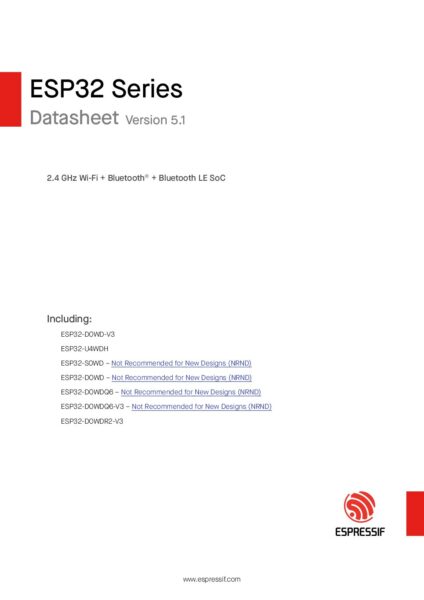
📄 ESP32-U4WDH Datasheet
🔌 IO Pin Assignment (Our Controller Platform)
The controller is based on an ESP32 platform with the following GPIO assignments.
💡 1. LED Data Outputs
Function GPIO Pin Description Data_GPIO_OUT1 GPIO2 Primary LED data output 1 Data_GPIO_OUT2 GPIO15 Secondary LED data output 2 Used as pixel LED data lines (WS281x, SM16703, SM16825, RGBW/RGBWY).
🎛 2. Buttons
Function GPIO Pin Description Button 0 GPIO0 User button 0 Button 1 GPIO25 User button 1 These can be mapped in WLED for power toggle, preset cycling, playlist control, etc.
🎤 3. Microphone Interface (Generic I2S PDM)
-
I2S SD (Data In): GPIO35
-
I2S WS (LRCLK): GPIO27
-
I2S SCK (Clock): unused
In summary:
The microphone uses a PDM I2S input, with SD on GPIO35 and WS on GPIO27.
The I2S SCK pin is not used in this design.-
This discussion was modified 11 months, 1 week ago by
 admin.
-
This discussion was modified 11 months, 1 week ago by admin.
-
This discussion was modified 11 months, 1 week ago by admin.
-
This discussion was modified 11 months, 1 week ago by admin.
-
This discussion was modified 11 months, 1 week ago by admin.
-
This discussion was modified 11 months, 1 week ago by admin.
-
This discussion was modified 11 months, 1 week ago by admin.
-
This discussion was modified 11 months, 1 week ago by admin.
-
Sorry, there were no replies found.